
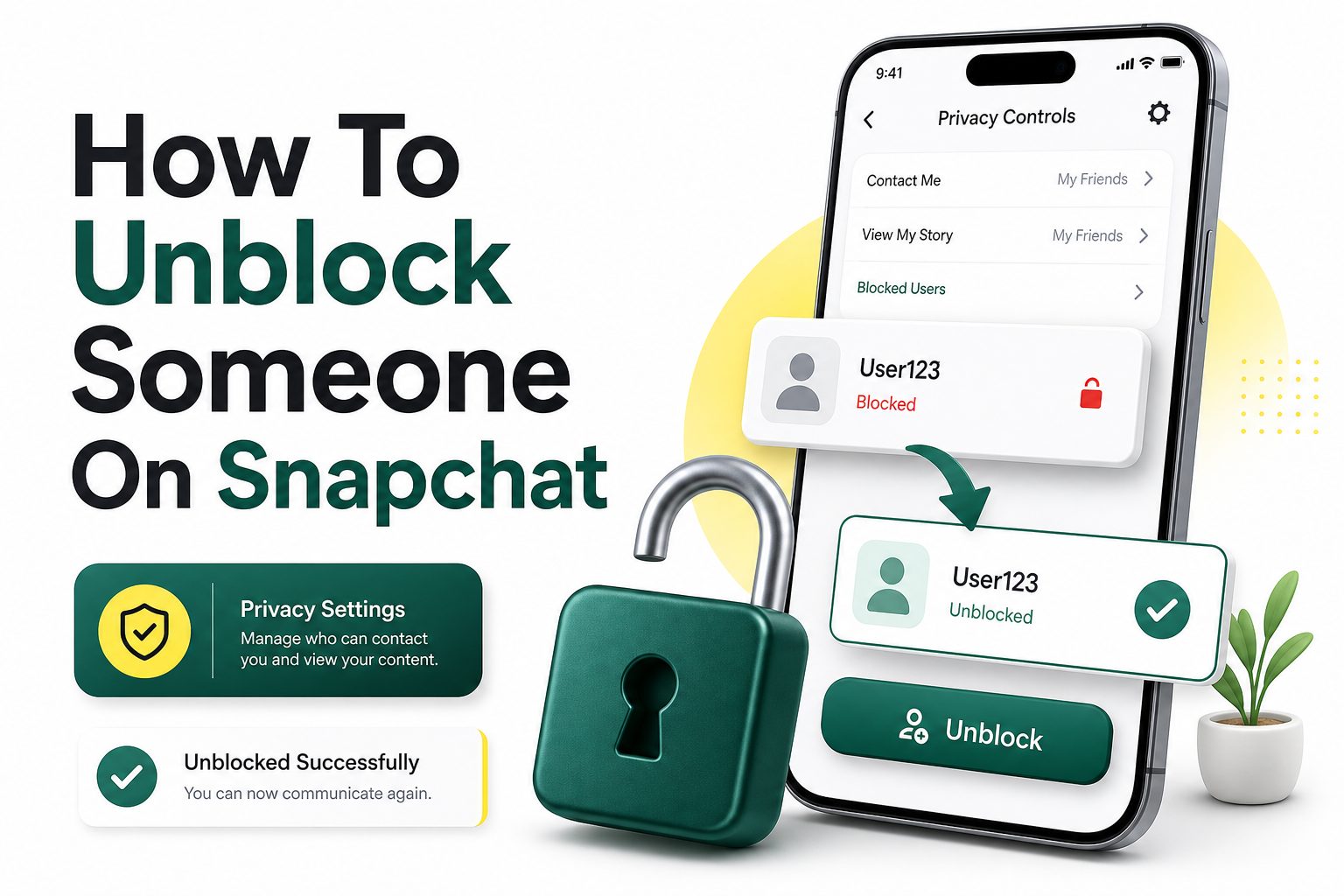
Snapchat makes it easy to block someone when you need space, privacy, or a break from unwanted messages. But situations change. Maybe you blocked a friend during an argument, removed an old contact by mistake, or simply want to reconnect. If you are wondering how to unblock someone on Snapchat, the process is straightforward once you know where to look.
The only tricky part is that blocked users are not managed from the chat screen. Snapchat keeps them inside your account settings, which can make the option feel hidden if you have never used it before. This guide walks you through the exact steps, explains what happens after unblocking, and covers common issues such as missing names, friend requests, privacy settings, and whether the other person gets notified.
How Snapchat Blocking Works
Blocking on Snapchat stops a person from contacting you directly through Snaps, Chats, and calls. It also limits their access to your private Stories and friendship details, depending on your settings and connection status before the block.
When someone is blocked, they usually disappear from your chat list and friend-related areas. This is why many users think they cannot find them again. Snapchat moves blocked accounts into a separate list inside Settings, where you can review and unblock them.
Why People Unblock Someone on Snapchat
People unblock Snapchat users for many normal reasons. A disagreement may be resolved, a friend may need to contact you again, or you may realize you blocked the wrong username while managing your privacy.
Unblocking does not mean you have to become close friends again immediately. It simply allows the account to interact with you again based on your Snapchat privacy settings. You still control whether to add them back, message them, or limit what they can see.
Quick facts before you unblock someone:
- Snapchat does not send a notification when you unblock someone.
- The person may be able to contact you again after being unblocked.
- You may need to add them as a friend again.
- Your Story visibility depends on your privacy settings.
- Public content may still be visible even when someone is blocked.
- Group chats can behave differently from private chats.
- Unblocking is reversible if you change your mind.
How to Unblock Someone on Snapchat Step by Step
To unblock someone, open Snapchat and tap your profile icon at the top of the screen. Then tap the gear icon to open Settings. Scroll down until you find the blocked users section, then tap it to view accounts you have blocked.
Once you see the person’s name, tap the X icon next to their username and confirm the action if Snapchat asks. After that, the account is unblocked and can interact with you again according to your current privacy and friend settings.
How to Find the Blocked List on Snapchat
The blocked list is located inside Snapchat Settings, not inside your chat inbox. This matters because blocked users often disappear from conversations, search suggestions, and friend lists, making the Settings page the most reliable place to find them.
If you cannot locate the blocked section right away, scroll carefully through Settings. Snapchat occasionally adjusts menu labels, but blocked users are usually grouped near privacy, account controls, or friend management options.
What Happens After You Unblock Someone
After you unblock someone, they may be able to send Snaps, Chats, and view eligible Stories or Charms. Their access depends on whether you are still friends and how your privacy settings are configured.
Unblocking does not always restore the exact relationship you had before. In some cases, you may need to search for their username and add them again. If they removed or blocked you too, reconnecting may require action from both sides.
Unblocking checklist:
- Open Snapchat and go to your profile.
- Tap Settings using the gear icon.
- Scroll to the blocked users area.
- Tap the X next to the person’s name.
- Confirm the unblock if prompted.
- Search their username if you want to add them again.
- Review Story and contact settings afterward.
Does Snapchat Notify Someone When You Unblock Them
Snapchat does not send a direct notification when you unblock someone. They will not receive an alert saying you changed their status, and the app does not announce the action in chat.
However, they may notice indirectly if they can search for your profile again, send a message, or view content they could not access before. These signs depend on your privacy settings and whether you add each other again.
Do You Need to Add Them Again After Unblocking
In many cases, yes, you may need to add the person again after unblocking. Blocking can remove or interrupt the friend connection, so unblocking alone may not automatically restore them to your friends list.
Search for their username or use their Snapcode if you want to reconnect. If their profile appears, you can send a friend request. If you cannot find them, they may have blocked you, changed usernames, or adjusted privacy settings.
Unblock vs Add Back comparison:
Action: Unblock
Purpose: Allows the account to interact with you again
Where to do it: Snapchat Settings
Does it restore friendship: Not always
Action: Add Friend
Purpose: Reconnects as Snapchat friends
Where to do it: Search, contacts, Snapcode, or Quick Add
Does it restore friendship: Yes, if accepted or mutual
Action: Remove Friend
Purpose: Takes someone off your friends list
Where to do it: Friendship controls
Does it block contact fully: No
Action: Block
Purpose: Stops direct contact and limits visibility
Where to do it: Chat or profile controls
Does it hide them from your friend areas: Usually yes
How to Add Someone Back After Unblocking
After unblocking, tap the search icon and type the person’s exact Snapchat username. If their account appears, open the profile and tap Add. Using the exact username is best because display names can be shared by many people.
If you cannot remember the username, check old contacts, mutual friends, saved Snapcodes, or phone contact syncing. You can also ask the person to send their Snapcode through another app if both of you want to reconnect.
Why You Cannot Find Someone After Unblocking
If you cannot find someone after unblocking, there are several possible reasons. They may have blocked you, deleted their account, changed their username, or adjusted who can find them through search and contacts.
It is also possible you are typing a display name instead of a username. Snapchat usernames are more reliable for search. If the account still does not appear, wait a little and check again after restarting or updating the app.
Common reasons a profile does not appear:
- You entered the wrong username.
- The person blocked your account.
- Their account was deleted or deactivated.
- Snapchat has not refreshed your settings yet.
- Your app version is outdated.
- Search privacy settings limit visibility.
- You recently made several friend changes too quickly.
How Privacy Settings Affect Unblocked Users
Unblocking someone does not mean they can see everything automatically. Snapchat privacy settings still decide who can contact you, view your Stories, see your location, and interact with certain parts of your profile.
After unblocking, review settings such as Contact Me, View My Story, and Snap Map location sharing. This helps you reconnect without giving more access than you intended, especially if you are unsure about rebuilding the relationship.
Review Your Story Settings After Unblocking
Stories are one of the first places where privacy matters after unblocking. If your Story setting allows all friends to view your posts, adding the person back may give them access to private updates again.
You can use custom Story settings if you want more control. This lets you stay connected while excluding specific people from personal posts. It is useful when you want conversation access without full visibility into your daily life.
Check Snap Map Before Reconnecting
Snap Map can reveal your location if you have enabled sharing with friends. Before adding someone back after unblocking, check whether your location is visible to all friends, selected friends, or no one.
If you want privacy, use Ghost Mode or limit location sharing to trusted people only. Unblocking is a small action, but location access can be sensitive, so it deserves a quick review before you reconnect.
Privacy tips after unblocking:
- Set Contact Me to Friends if you want fewer random messages.
- Use Custom Story settings for sensitive posts.
- Turn on Ghost Mode if you do not want location sharing.
- Review Quick Add visibility if you prefer a lower profile.
- Avoid adding someone back immediately if you are unsure.
- Block again if the person resumes unwanted behavior.
Can You Unblock Someone on iPhone and Android the Same Way
The steps are nearly the same on iPhone and Android. Open your profile, go to Settings, find the blocked users list, and tap the X next to the username you want to unblock.
Small visual differences may appear depending on your device, app version, or region. Still, the overall path remains consistent. If something looks different, update Snapchat and look for blocked users under privacy or account settings.
How to Unblock Someone Without Their Username
You do not need to remember someone’s username to unblock them if they are already on your blocked list. Snapchat shows blocked accounts in Settings, so you can identify the person from that list and remove the block.
You will need the username if you want to add them again afterward. If the blocked list includes similar names, take care before tapping the X so you do not unblock the wrong person.
What to do if you forgot their username:
- Check the blocked users list first.
- Look for their display name or Bitmoji.
- Review old saved contacts outside Snapchat.
- Ask a mutual friend for the username.
- Use their Snapcode if they share it.
- Avoid guessing if several accounts look similar.
Can You Unblock Someone Who Blocked You
You can remove your own block from the blocked list, but that does not override the other person’s settings. If they also blocked you, you may still be unable to find, add, or message them.
Both users control their own privacy. If you unblock them and nothing changes, the limitation may be on their side. In that case, Snapchat will not let you force contact through the app.
Will Old Chats Come Back After Unblocking
Old chats may still exist depending on Snapchat’s message settings, saved messages, and whether the conversation was cleared. Saved chats are more likely to remain visible if the conversation becomes available again.
Unblocking does not guarantee that every old Snap or message returns. Snaps often expire, and unsaved chats may disappear based on Snapchat’s normal rules. If something important was not saved, it may no longer be recoverable.
Saved Chats and Memories
Saved chat messages are different from disappearing Snaps. If either person saved messages in the conversation, those saved items may still appear when the chat is accessible again.
Memories are separate from private chats. Your own saved Memories remain in your account unless you delete them. Unblocking someone does not give them access to your private Memories unless you share content with them again.
Cleared Conversations
Clearing a conversation from your feed is not the same as deleting all chat history. It mainly removes the thread from your chat screen, while saved messages may still remain.
If you unblocked someone and cannot see the old conversation, search their username after adding them back. The chat may reappear once you start a new conversation or restore the friendship connection.
Chat behavior after unblocking:
- Saved messages may still be visible.
- Expired Snaps usually do not return.
- Cleared conversations may stay hidden.
- New messages can start a fresh thread.
- Group chat messages may still appear.
- Chat access depends on friend and privacy settings.
How Group Chats Work After Unblocking
Group chats can be different from private chats. Blocking someone may stop private contact, but shared group spaces can still create situations where you see each other’s messages, depending on the group and app behavior.
After unblocking, private messaging may become available again if your settings allow it. If you do not want contact inside a shared group, leaving the group or adjusting notification settings may be a better option.
How to Reblock Someone If You Change Your Mind
If the person contacts you in a way that feels unwanted, you can block them again. Open their profile from chat or search, use friendship or profile controls, and choose Block.
Reblocking is a reasonable option when unblocking does not go as expected. You do not have to keep access open just because you changed it once. Snapchat gives you control over who can reach you.
When reblocking makes sense:
- They send unwanted messages again.
- They pressure you to respond.
- They view or react to content inappropriately.
- You unblocked the wrong account.
- You feel uncomfortable after reconnecting.
- You want a clean break from contact.
Difference Between Blocking, Removing, and Muting
Blocking is the strongest option because it limits direct contact and visibility. Removing a friend is lighter because it takes them off your friends list without necessarily stopping all possible interaction.
Muting is even softer. It lets you reduce notifications or hide someone’s Stories without ending the connection. Choosing the right option depends on whether you want privacy, less noise, or a complete communication boundary.
When to Remove Instead of Block
Removing someone is useful when you no longer want them on your friends list but do not need a hard boundary. It is often enough for casual contacts, old classmates, or people you no longer talk to.
If your privacy settings only allow friends to contact you, removing a person may greatly limit access. For stronger protection from a specific user, blocking is still the better choice.
When to Mute Instead of Block
Muting works well when someone posts too much or sends frequent notifications, but you do not want to create social friction. It helps reduce distractions while keeping the friendship intact.
This can be useful for close friends, coworkers, or relatives. You still remain connected, but their activity becomes less intrusive. It is a practical middle ground when blocking feels unnecessary.
Best option by situation:
Situation: You need complete distance
Best action: Block
Situation: You want fewer posts
Best action: Mute Stories
Situation: You no longer want them as a friend
Best action: Remove Friend
Situation: You want to reconnect
Best action: Unblock and add back if needed
Situation: You feel unsafe or harassed
Best action: Block and report
How to Report Someone After Unblocking
If someone violates Snapchat’s rules, sends harmful content, or harasses you after being unblocked, reporting may be necessary. Reporting sends information to Snapchat so the platform can review the behavior.
You can report accounts, Snaps, Stories, and chats through the app. Blocking protects your account experience, while reporting helps Snapchat review possible abuse or policy violations.
Safety Tips Before You Unblock Someone
Before unblocking, think about why you blocked the person in the first place. If it was a minor disagreement, reconnecting may be fine. If it involved harassment, threats, or repeated boundary crossing, keeping the block may be healthier.
You can also adjust privacy settings before unblocking. Limiting who can contact you, view your Story, and see your location gives you more control if you decide to reopen communication carefully.
Pre-unblock safety checklist:
- Review why you blocked the person.
- Check your Story privacy.
- Turn off location sharing if needed.
- Decide whether you want to add them back.
- Avoid sending a message immediately if emotions are high.
- Keep screenshots of harmful behavior if safety is a concern.
- Report serious harassment or threats.
Troubleshooting Snapchat Unblock Problems
Sometimes the unblock process does not work smoothly. The app may freeze, the blocked list may not load, or the name may not disappear right away after you tap the X.
Start with simple fixes. Close and reopen Snapchat, check your internet connection, update the app, and try again. If the issue continues, restart your phone or contact Snapchat Support through the app settings.
Blocked List Not Loading
If your blocked list does not load, the issue may be temporary. Poor connection, app cache problems, or a Snapchat service issue can prevent settings from displaying correctly.
Switch between Wi-Fi and mobile data, then reopen the app. If the list still fails to load, update Snapchat from your app store. An outdated version can cause account settings to behave unpredictably.
Unblock Button Not Working
If tapping the X does nothing, wait a few seconds before trying again. Repeated taps may cause the app to lag or fail to confirm the action properly.
Force close Snapchat, reopen it, and return to the blocked list. If the person remains blocked, try again later. Temporary account or server delays can affect changes even when your phone appears to be working normally.
Useful troubleshooting steps:
- Check your internet connection.
- Update Snapchat to the latest version.
- Force close and reopen the app.
- Restart your phone.
- Clear Snapchat cache if available.
- Try again after a short wait.
- Contact Snapchat Support if the issue continues.
How to Manage Contact Settings After Unblocking
Contact settings decide who can send you Snaps, Chats, and calls. If you only want friends to reach you, set contact permissions to Friends instead of allowing broader access.
This is especially useful after unblocking someone you do not plan to add back. They may be unblocked, but your settings can still limit direct communication unless you reconnect as friends.
How to Control Who Views Your Story
Story settings are separate from contact settings. You can allow everyone, friends, or a custom list to view your Stories, depending on how private you want your posts to be.
After unblocking someone on Snapchat, custom Story controls can help you reconnect without sharing everything. For more privacy tips, see [Internal Link: Snapchat Privacy Settings] from our main website.
Snapchat settings worth checking:
- Contact Me
- View My Story
- See My Location
- Quick Add visibility
- Activity indicators
- Story notifications
- Friend request options
How to Know If Unblocking Was Successful
The easiest sign is that the person no longer appears in your blocked list. Once their name is gone from that list, your account is no longer actively blocking them.
You may also be able to search their username again, depending on their own settings. If you add them back successfully, their profile and chat options should become available like other Snapchat friends.
Should You Message Someone After Unblocking
You do not have to message someone immediately after unblocking. In many cases, it is better to pause and decide what kind of contact you actually want.
If you do message them, keep it simple and respectful. A short note works better than reopening old arguments. If they do not respond, avoid repeated messages and respect their space.
Simple message examples after unblocking:
- “Hey, I unblocked you and wanted to check in.”
- “I’m okay talking again if you are.”
- “No pressure to reply, but I wanted to clear the air.”
- “I added you back in case you want to reconnect.”
- “I’d like to keep things respectful going forward.”
How Parents Can Help Teens Manage Blocking
For teens, blocking and unblocking can carry social pressure. Parents can help by talking about privacy, boundaries, and when it is better not to reopen contact with someone.
The goal should not be to monitor every interaction, but to help teens make safer choices. Encourage them to keep trusted adults involved if a blocked person was bullying, threatening, or repeatedly crossing boundaries.
Good Snapchat Habits After Reconnecting
After reconnecting, pay attention to how the interaction feels. If the conversation is respectful, unblocking may have solved the issue. If old patterns return quickly, use Snapchat’s controls without hesitation.
Healthy app habits include limiting location sharing, keeping private Stories selective, and avoiding late-night arguments over chat. For more guidance, read [Internal Link: Social Media Safety Tips] from our main website.
Healthy reconnection habits:
- Keep boundaries clear.
- Avoid oversharing immediately.
- Use privacy settings actively.
- Do not ignore repeated discomfort.
- Leave group chats that cause stress.
- Block again if needed.
- Report serious abuse.
Conclusion
Unblocking someone on Snapchat is simple, but it is worth knowing what changes afterward. The blocked list lives in Settings, and once you remove someone from it, they may be able to contact you or view certain content based on your privacy choices. You may also need to add them again if the friendship connection was removed.
Before reconnecting, check your Story, contact, and location settings so you stay in control. Unblocking can be useful when a conflict has passed or a block happened by mistake, but it should never feel like an obligation. If someone made you uncomfortable before, you can keep the boundary in place or block them again later.
The best approach is practical: learn how to unblock someone on snapchat, review your privacy settings, and reconnect only when it makes sense for you.
FAQ
Can I unblock someone on Snapchat without adding them back?
Yes, you can unblock someone without adding them as a friend again. Unblocking only removes the restriction. To restore the friend connection, you may need to search their username and send a friend request.
Will someone know if I unblock them on Snapchat?
Snapchat does not send a notification when you unblock someone. They may only notice indirectly if they can find your profile, message you, or view content that was previously unavailable.
Why can’t I find someone after unblocking them?
They may have blocked you, deleted their account, changed their username, or limited search visibility. Also make sure you are searching the exact Snapchat username rather than only a display name.
Can I block someone again after unblocking them?
Yes, you can block the same person again at any time. Open their profile or chat options, choose the friendship controls, and select Block if you no longer want contact.
Does unblocking restore old Snapchat messages?
Not always. Saved messages may still appear, but expired Snaps and unsaved chats usually do not return. Chat visibility also depends on whether you add the person back and your current settings.
0 Comments